
Scheduled actions and event watches
Open Events in a project to schedule work, watch for events, and see what automation is already running. Every chat session carries a scoped version of the same thing.
Open-ended recurring automation that starts new work, such as a nightly schedule, a reaction to GitHub issues, or a webhook from another service, is set up as a trigger instead.
Where to find it
Section titled “Where to find it”Everything in the project
Section titled “Everything in the project”The project Events page — Events in the project navigation — is the full view. It has four sections: Subscriptions, Schedules, Standing watches, and Channels. Each carries an icon, and a section you have loaded keeps a count beside its name as you move between them (a section holding nothing shows no count). Schedules refresh every 30 seconds while the tab is in front (and stop while it is in the background, so a page left open does not poll forever). Every section has its own empty state naming what would appear there, so “nothing here” never looks like a failed load.
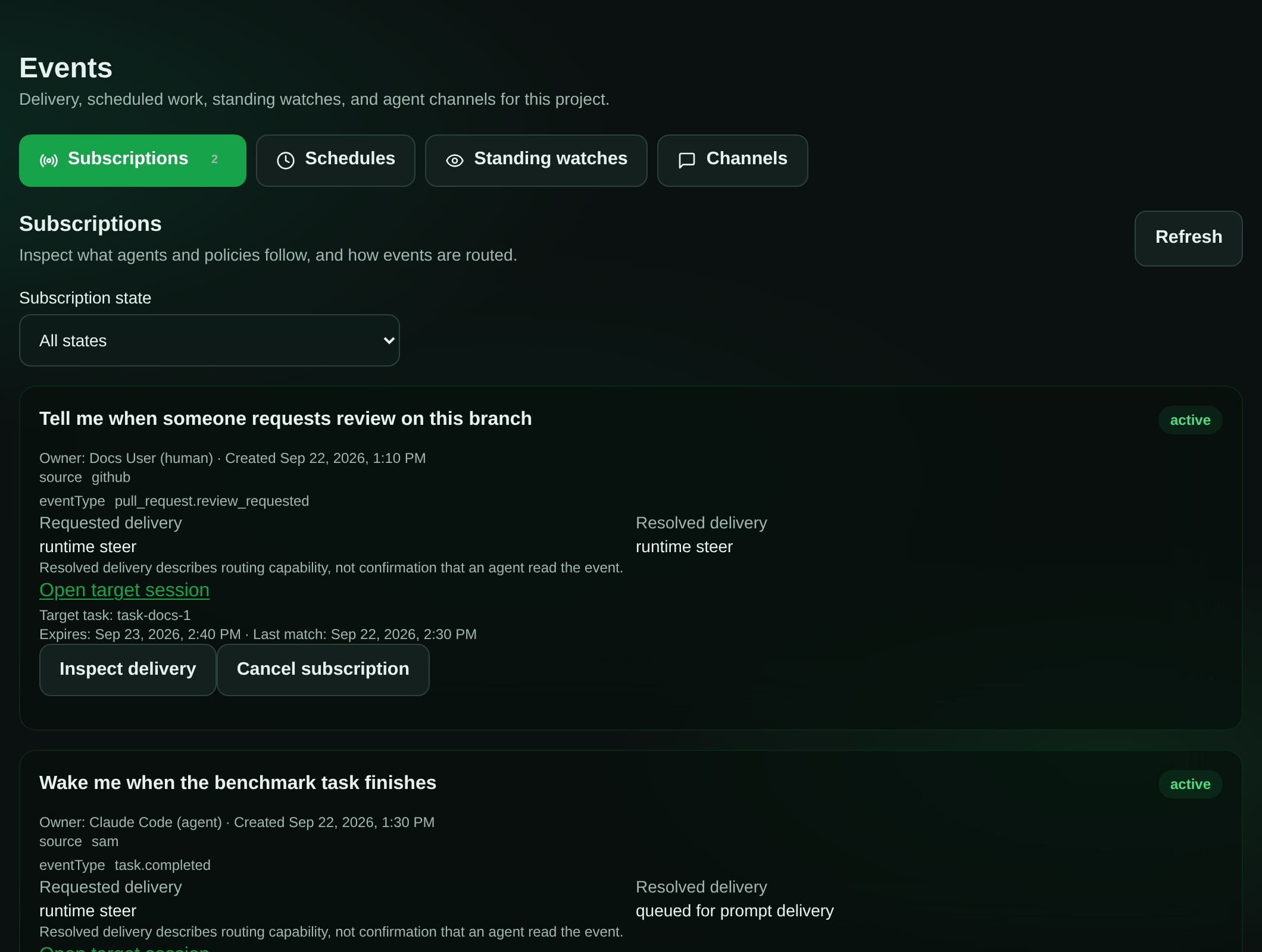
What is attached to this one chat?
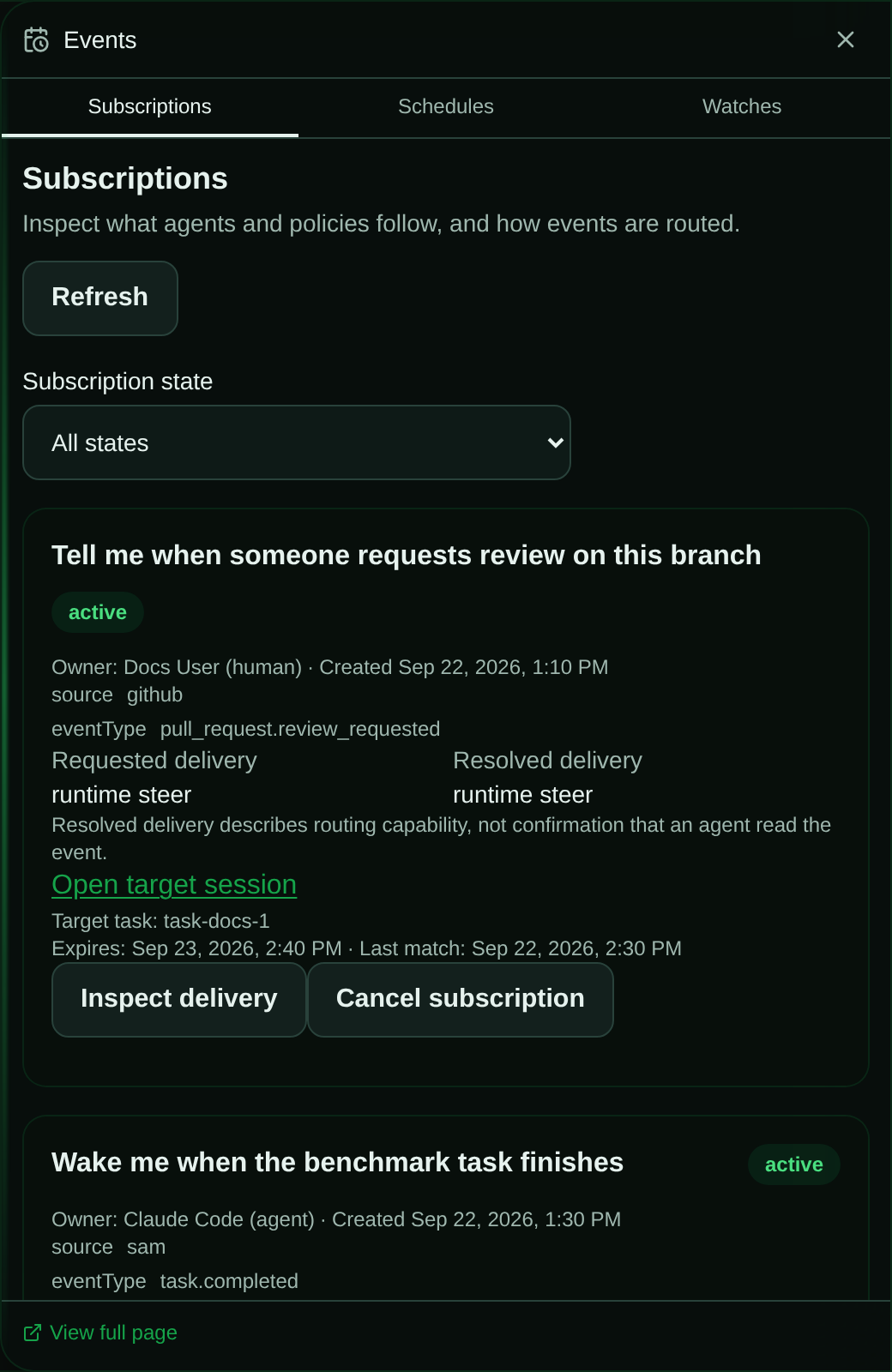
Section titled “What is attached to this one chat?”The session Events drawer is the same data, narrowed to one conversation. Open a chat session, click Events in the session tool rail, and the drawer opens over the chat with Subscriptions, Schedules, and Watches tabs for that session. It answers “what automation is attached to this chat” without leaving the chat. View full page at the bottom hands you to the project page with the same session filter applied; it always lands on Subscriptions, whichever tab you had open.
On the project page, a session filter shows a banner with the first eight characters of the session ID (a link back to the chat) and a Show whole project button to clear it. Channels are always project-wide — that banner says so — because a channel is shared between agents rather than owned by one conversation.
Reading a state badge
Section titled “Reading a state badge”Badges are coloured the same way here as in the admin event inspector, and every badge spells its state out in text as well, so you never have to rely on the colour.
| Colour | States |
|---|---|
| Green | active, delivered, acked, accepted, matched, batch_created, record_only |
| Blue | pending, queued_for_prompt_delivery, runtime_steer, runtime_interrupt, spawn_task |
| Amber | retry, ambiguous |
| Red | failed, unauthorized, unsupported, critical, error |
| Grey | cancelled, expired, recorded_not_injected, and anything else |
Schedule once
Section titled “Schedule once”In the Schedules section, choose Schedule once, enter a due time, and pick an action:
- Message an existing session sends your prompt to the selected conversation. A busy agent receives it through the durable queue. A sleeping session resumes its existing conversation when recovery is available, including a task whose agent went to sleep while waiting, so an agent can schedule a message to itself and be woken by it.
- Start a new session creates a task-backed conversation using the selected profile and skill, with current project access, credentials and placement rules. It can run after you leave or archive the conversation that created the schedule.
The stored due time is UTC; the display timezone helps you interpret it. A due time is the earliest admission time, not a promise of exact-second model execution. Capacity, busy agents and recovery can delay delivery. Schedules do not keep an agent or workspace awake while waiting.
Pending schedules can be rescheduled or cancelled. If someone else changed a schedule, refresh before trying again. Once an action is admitted, its durable message or task intent has been accepted. Cancelling the schedule at that point does not retract that work. Use the resulting session or task controls instead.
An archived or cancelled target fails visibly; SAM does not silently redirect its message to a new conversation. Expired schedules do not start new work. An ambiguous result means SAM cannot establish the outcome of an attempted submission. Inspect the linked task or delivery before taking another action; agent side effects are not guaranteed to happen exactly once.
The execution receipt shows the canonical task or delivery state separately from schedule admission. Refresh receipt can reconcile exhausted retries without waking compute or replaying a message. Known running tasks resume monitoring; only a terminal task or delivery receipt frees a standing watch’s concurrency slot. Missing or ambiguous receipts remain unresolved.
For an eligible queued task checkpoint, Retry task submission starts another
finite retry budget using the original task/session identities, prompt, and deadline.
Current creator authority is checked again. This option is unavailable after the
original deadline or when task identity cannot be confirmed. It never resends a
scheduled message. Agents use reconcile_project_schedule with expectedVersion
and optional retrySubmission: true for the same operation.
Standing watches
Section titled “Standing watches”A standing watch is a human-managed project policy that acts on matching events. Choose a filter, an action, a cooldown, a concurrency limit and a finite execution limit. The execution limit bounds the number of actions, not a monetary budget. The resulting tasks still use ordinary profile and credential controls.
Pause a watch to stop new actions; resume it to match future events. Revoking a watch ends it. Changes, pause and revoke cancel actions that have not yet been admitted. Already admitted messages and tasks remain visible and can continue. Agents can manage their own finite subscriptions and one-off schedules; they cannot grant themselves a standing policy through an agent tool.
Understand delivery
Section titled “Understand delivery”Subscriptions show both requested and resolved delivery. Recording a match does not prove that it was injected into an agent’s context. Channels provide bounded history and an atomic catch-up-to-follow handoff for collaborating agents. Treat channel and external event contents as untrusted evidence.
For a webhook that did not trigger, open its trigger’s Delivery history. The audit records the filter decision and reason, including deliveries that were intentionally ignored. Repeatedly changing a subscription will not make an ignored webhook pass a different trigger’s filters.
Project members can inspect automation. Project writers can change it. Access is checked again when an action fires; schedules store creator identity, never an agent’s bearer token.
Storage and input limits
Section titled “Storage and input limits”SAM preserves schedule and watch history, including idempotency keys. By default, a project can retain 4,096 schedules and 256 watches across all states, alongside the separate limits of 128 active schedules and 64 active or paused watches. Cancelling or revoking releases active capacity but does not erase history or release retained capacity. At the retained limit, new records receive a capacity error; identical create retries still return their original record. Automatic history pruning is not implemented. Operators can explicitly raise the retained limits using the configuration reference after reviewing project storage capacity. These limits do not delete conversation text.
Prompts have a configurable UTF-8 byte limit. New-session actions also validate the current task prompt character limit when created or updated, so oversize prompts fail immediately. Task labels are shortened to the configured task label limits while the full schedule reason remains available in its history.