
Use SAM from Claude and ChatGPT
The SAM Connector lets an AI app you already use, such as Claude or ChatGPT, work with SAM for you. From a conversation in that app you can ask what needs your attention, start work in a project, reply to a chat, answer an agent that is waiting for you, and stop work. The app acts as you: it sees only what you can see in SAM, and its answers link back to the pages in SAM.
What you can ask
Section titled “What you can ask”- “What needs my attention in SAM?” Agents waiting for your answer, recent failures, finished work with its pull requests, and unread notifications, across your projects.
- Check on work. “How is the checkout tests task going?” or “What did the agent say last in the invoice rendering chat?” The app can read your projects, chats, tasks, ideas, saved project knowledge, and agent profiles.
- Start work. “In acme/checkout-service, start a chat to find out why the tests are failing.” This starts work in that project, which you can open in SAM like any other. It’s a Chat or a Task (see Chat or Task) depending on what the app asks for and on the Task Mode of the profile or skill it picks. If neither says, work on a VM starts as a Task (a Chat if its workspace profile is Lightweight) and Instant work as a Chat, so ask for a chat if you want to keep steering it. Anything that needs the repository’s code goes this way: the Connector doesn’t read files itself, the agent in that chat does.
- Steer or stop it. “Tell that chat to leave the database migration alone”, or “Stop it.”
- Answer your agents. Approve or refuse a permission request, answer an agent’s question, or open a link it sent. See Answering your agents.
- Keep ideas. Create an idea, or update one.
It can’t read repository files directly, create projects, change settings, or delete ideas. It can only reply to, answer, or stop chats that you started.
Connect Claude or ChatGPT
Section titled “Connect Claude or ChatGPT”-
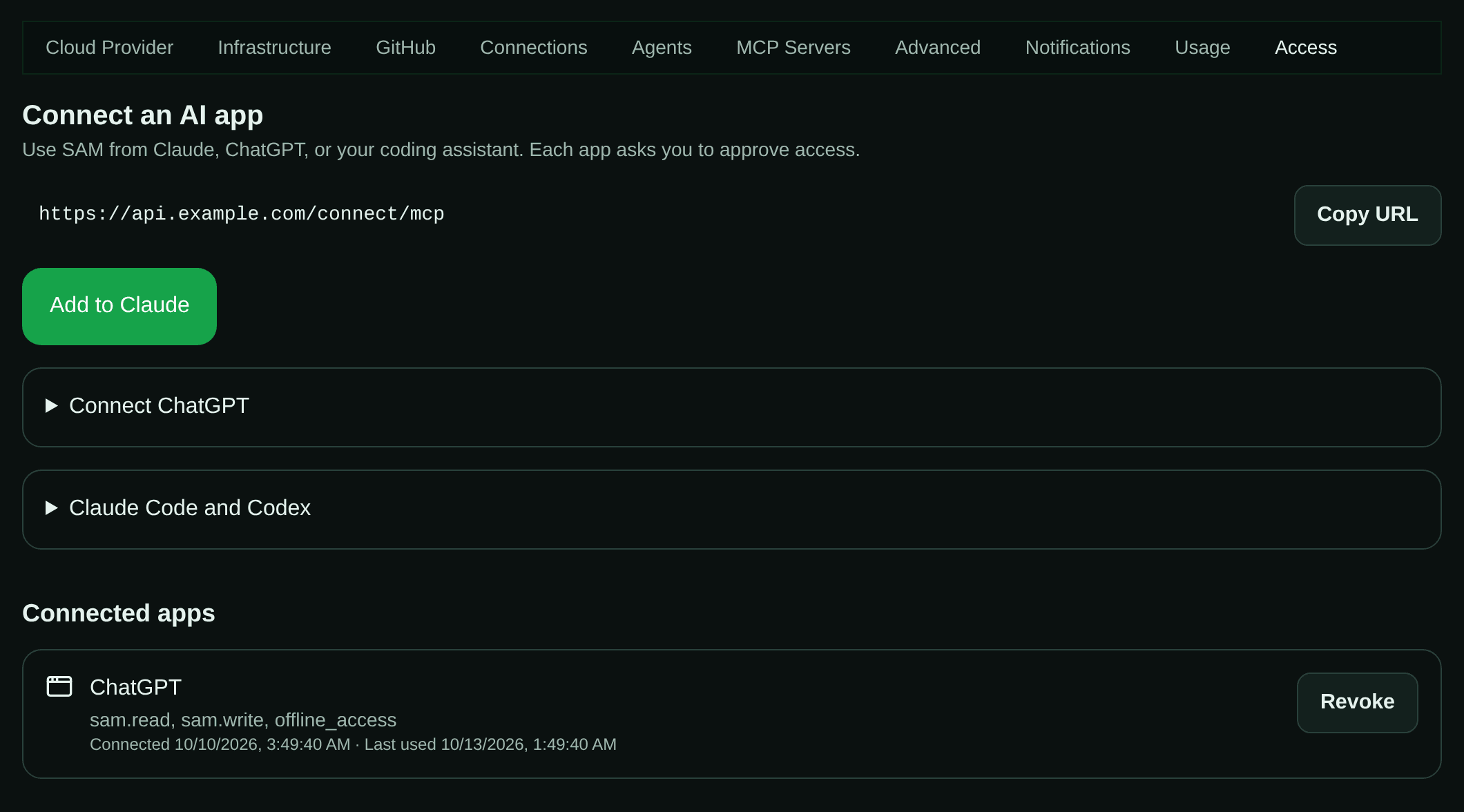
In SAM, open Settings → Access: your account settings, not a project’s settings. On a phone, scroll the row of Settings tabs sideways to reach Access. If there is no Connect an AI app section, the Connector is turned off on your SAM installation; ask your administrator.
-
Add SAM to your app:
- Claude: select Add to Claude. Claude opens its connector settings with SAM’s address filled in; add it and connect. If the address isn’t filled in, add a custom connector yourself and paste the URL you copy with Copy URL. Custom connectors depend on your Claude plan. On a phone, if Add to Claude doesn’t open the form, add the connector at claude.ai in a browser instead.
- ChatGPT: set it up in ChatGPT on the web (chatgpt.com). Select Copy URL, then in ChatGPT’s settings create a custom app (connector) with that URL and OAuth sign-in, and connect it. Some accounts need Developer mode turned on first. Once it’s connected, whether you can use it from the ChatGPT phone app depends on your plan. The Connect ChatGPT section on the page lists the same steps.
-
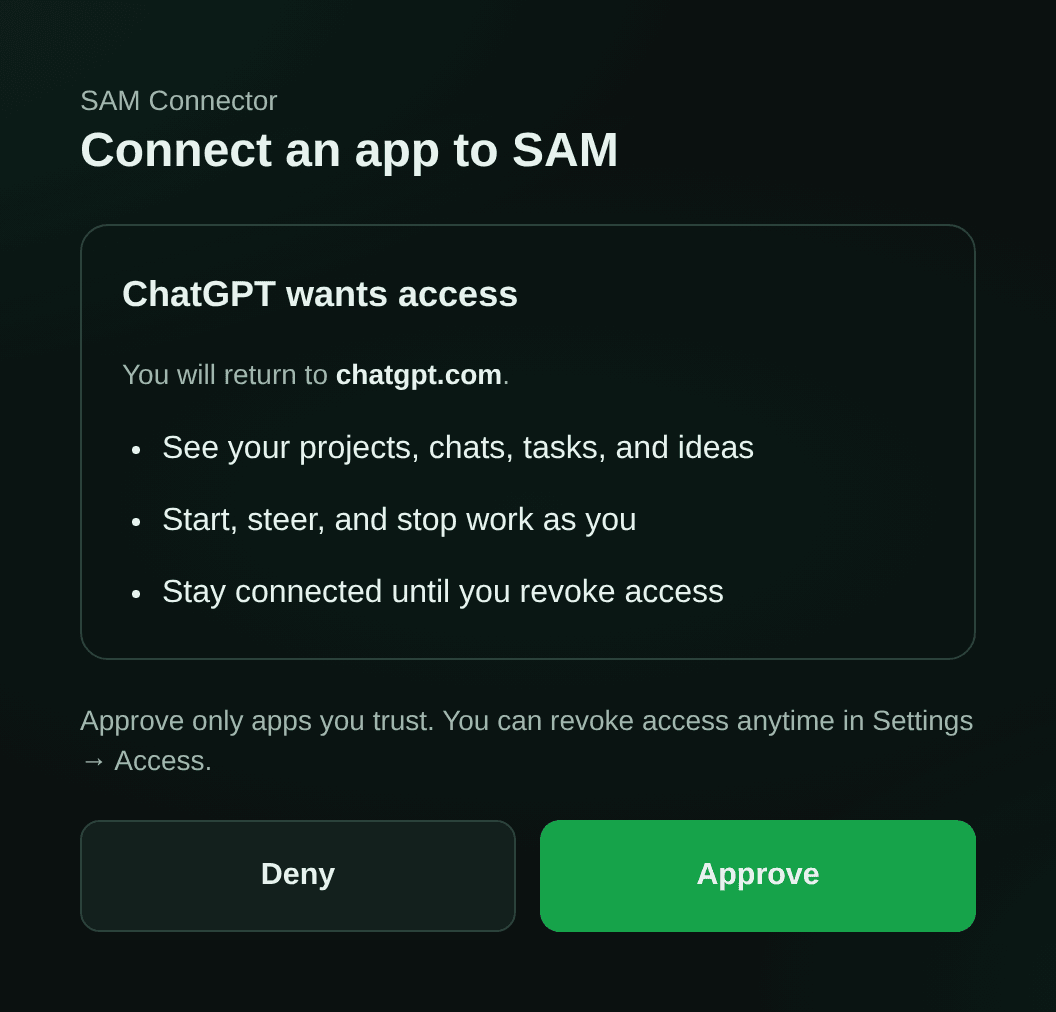
The app sends you to SAM to approve the connection. Sign in if asked, check the app’s name and the site it will send you back to, then select Approve.
-
Back in the app, try “What needs my attention in SAM?”


You approve the permissions the app asks for as a set. Start, steer, and stop work as you is left out when your installation only allows reading (an administrator setting). If the page warns that this app returns to a local program on this device, the connection came from a program on your computer, such as a command-line client: approve only if you started it there yourself. If it says your account is pending admin approval, or that the app is blocked by the administrator, there’s nothing to approve yet; ask your administrator.
Under Connected apps, each app’s permissions are listed by their short names: sam.read (see
your projects, chats, tasks, and ideas), sam.write (start, steer, and stop work), and
offline_access (stay connected).
Starting work uses compute
Section titled “Starting work uses compute”Starting work from your app creates a VM or an Instant workspace, which costs what it would anywhere else. The app chooses an agent profile (it can list yours), or your project’s default agent settings apply. A profile set to Cloud VM or Instant container decides where the work runs; with an Auto profile, or none, it runs on a VM when you or the project has a cloud credential connected, and on Instant otherwise. To stop runaway use, each person can start 10 pieces of work an hour and 50 a day through the Connector unless your administrator changed the limits.
Work your app starts is labelled via ChatGPT (or the app’s name) on the dashboard, in the session list, and on ideas, so you can tell it apart from work you started in SAM.
Answering your agents
Section titled “Answering your agents”When an agent is waiting for you, your app can show you what it asked, with the agent’s own options or form fields, and send your answer. Apps are told to confirm every answer with you before sending it. SAM checks that the answer is one the agent offered, but it can’t tell whether the app asked you first, so treat an app that answers without asking as a reason to disconnect it.
Command-line clients
Section titled “Command-line clients”Claude Code and Codex can use the Connector too. Replace the example URL with the one from Settings → Access, then follow the sign-in prompt:
claude mcp add --transport http sam https://api.example.com/connect/mcpcodex mcp add sam --url https://api.example.com/connect/mcpcodex mcp login samTo use a SAM API token instead of signing in, create one in the API Tokens section of the same
page, keep it in SAM_CONNECTOR_TOKEN, and add SAM with:
claude mcp add --transport http sam https://api.example.com/connect/mcp --header "Authorization: Bearer $SAM_CONNECTOR_TOKEN"codex mcp add sam --url https://api.example.com/connect/mcp --bearer-token-env-var SAM_CONNECTOR_TOKENAn API token always has both permissions (it can’t be limited to reading), though your administrator’s Enable Connector and Allow writes settings and the per-person limits still apply. It isn’t listed under Connected apps; to cut it off, revoke the token under API Tokens.
This is your own connection to SAM, as a person. Agents running inside SAM already have their own SAM tools; don’t give them this URL or a personal token. For scripts, or to work with SAM from a terminal yourself, use the SAM CLI.
Disconnect an app
Section titled “Disconnect an app”In Settings → Access → Connected apps, select Revoke next to the app, then Revoke access. The app loses access straight away; you can connect it again later. You may also want to remove SAM from the app’s own list of connectors.
If something goes wrong
Section titled “If something goes wrong”| Your app reports | What it means | What to do |
|---|---|---|
| ”The Connector is disabled by the administrator.” | The Connector is turned off on your installation | Ask your administrator. Your connection is kept for when it’s on |
| ”Writes are disabled by the administrator. Reconnecting will not enable them.” | Your installation only allows reading | Use SAM itself to start or change work |
| ”Connector limit reached”, with a time to try again after | You hit one of the per-person limits | Wait until that time |
| ”Previous outcome is uncertain; do not submit a new start.” | A request your app retried, such as a start or a reply, may or may not have gone through | Check SAM before asking again, so you don’t do it twice |
| ”Result exceeds the Connector response limit.” | The answer was too big to send back | Ask for less: fewer items, or a narrower question |
| ”Redirect host is not allowed by the administrator” | Your installation only allows certain apps | Ask your administrator |
| ”Reconnect with sam.write permission.” | You connected while your installation only allowed reading, so this connection can only read | Connect again |
| The app asks you to connect again | The connection was revoked or expired, or SAM cut it off because the app reused an old sign-in token | Connect again |
For administrators
Section titled “For administrators”Superadmins manage the Connector under Admin → Integrations → Connector:
| Setting | Default |
|---|---|
| Enable Connector | On |
| Allow writes | On. Off makes every connection read-only |
| Client registration | Open — each user still consents |
| Allowed redirect hosts | claude.ai, chatgpt.com, loopback |
| Access token lifetime (seconds) | 3,600 |
| Refresh token lifetime (seconds) | 2,592,000 (30 days), renewed on each use |
| Reads per user per minute | 120 |
| Writes per user per minute | 30 |
| Starts per user per hour | 10 |
| Starts per user per day | 50 |
Allowed redirect hosts applies only when Client registration is set to Allowed redirect hosts only, and only when an app registers: apps that registered earlier keep working, so use Block to cut one off. Each setting shows where its value comes from, and Reset to default removes your change. Save Connector settings saves only what you changed. Turning the Connector off keeps everyone’s connections; they work again when you turn it back on, as long as that’s within the refresh token lifetime. After you change Allow writes, people may need to refresh the tool list in their app, and anyone who connected while writes were off has to connect again to be able to start work.
Below the settings, Active connections lists every user’s connected apps with a Revoke button, and Seen clients lists the apps that have registered, with Block and Unblock.
Self-hosted installations
Section titled “Self-hosted installations”- It’s on after you update. The Connector shipped in v2026.10.10 and is enabled by default. To
turn it off, switch off Enable Connector here, or set the
CONNECTOR_ENABLEDGitHub Environment variable tofalsebefore you deploy. - No setup is needed. Your installation is its own sign-in (OAuth) provider, and the deploy creates the storage it needs.
- The apps’ servers must reach your API. Claude’s and ChatGPT’s servers connect to your API host
(its discovery documents,
/oauth/*, and/connect/mcp), and people need your web host to sign in and approve. A Cloudflare Access login wall, a WAF challenge, or a network restriction on those paths stops connections and refreshes; allow them while keeping SAM’s own sign-in in place. - Limits for registration, request sizes, and idle apps are in the configuration reference.