
Chat Features
SAM’s project pages are chat-first interfaces where you interact with AI coding agents in real-time.
Recent chat updates make the workspace feel more like a persistent work surface: task-backed chats can be forked consistently, SAM-injected setup context is collapsed out of the main conversation, and desktop sidebars can be collapsed when you need more room.
Attach Files to a Message
Section titled “Attach Files to a Message”Use the paperclip, paste an image or file, or drag files onto the message input. Long pasted text becomes a text-file attachment; short text stays in the input.
Files upload while you compose. Review the attachment chips and remove any files you do not want to send. If an upload fails, remove it and attach it again before sending.
The agent receives the files only when you send your message, together with their exact workspace paths. You can also attach files to a sleeping conversation: SAM wakes the workspace before delivering your message and files.
Real-Time Streaming
Section titled “Real-Time Streaming”Agent output streams directly to your browser via WebSocket. You see code being written, terminal commands executing, and the agent’s thought process as it happens — no waiting for a complete response.
When the Agent Needs You
Section titled “When the Agent Needs You”Sometimes an agent stops and waits for you. It wants permission before it runs a command or edits a file, it has a question only you can answer, or a tool it uses wants you to open a page in your browser. Each request appears as a card in the chat — a permission request under the step it’s about, a question or a link at the end of the chat — and the chat is marked Needs input in the session list. The agent is paused until you answer.

For every kind of request:
- Only the person who started the chat can answer. In a shared project, other members see that the agent is waiting, but not what it asked or what you answered.
- No notification is sent. Watch the session list for Needs input; on a phone, open the list
with the list icon at the right of the project-name bar. (Notifications cover a different kind of
question, the one agents ask with their
request_human_inputtool — see Notifications.) - You don’t have to stay on the page. A request waits in SAM, not in your browser tab, so you can answer later or from another device until its deadline, which the card shows. Meanwhile a VM session stays awake, so its machine keeps running, billed to your cloud account if it’s yours. If nobody answers in time, the request ends — the card says it expired or was cancelled — and the agent is told no, so the action it asked about does not happen. Send a message to tell the agent how to carry on. (A Task may have gone to sleep by then; your reply wakes it with its original task mode and automatic Git delivery behavior.)
- Answer on the card, not in the message box. A message you type waits until the agent’s turn ends, and the turn can’t end until the card is answered or expires. To stop the agent instead, select Interrupt (the red button above the message box); the card then says Request cancelled.
- After you answer, the card says your answer is saved, then that it was delivered to the agent. If your connection dropped as you answered, select Retry answer (or Check receipt) on the card: it sends the same answer again, so it can’t count twice. If the card says delivery is unconfirmed, or that the request was interrupted because the agent stopped first, check whether the agent carried on. If it’s still waiting, select Interrupt first, then send your decision as a message.
- A chat that sleeps can still ask when it wakes, as long as it could ask when it started. Older chats may not have their settings recorded; see After a chat wakes from sleep.
- Waiting for you is not a stall. SAM’s check for stuck agents leaves a chat alone while a request is open, until its deadline. If the request expires, the agent is told no, so send a message saying how to continue.
Permission requests
Section titled “Permission requests”Whether an agent asks before acting depends on its permission mode. Agents start in Bypass Permissions, which rarely asks (a few agents, such as Amp and Gemini CLI, ask on their own anyway). In Manual mode the agent asks before it runs commands or changes files, and in Plan Mode Claude Code asks you to approve its plan before it changes anything.
The card is titled with what the agent wants to do — for a command, the command itself — and its buttons are the agent’s own choices. For a Claude Code command they are usually:
- Yes runs it this once.
- Yes, and don’t ask again for … runs it and lets similar commands, named on the button, run without asking from then on in this chat’s workspace.
- No refuses. The agent is told you said no and carries on without it.
If the agent asks about every command and you didn’t choose that, its mode was probably saved as
Manual earlier — see
An agent asks when you don’t expect it
— or the project’s
devcontainer runs as root, where Claude Code
refuses Bypass Permissions. In
the meantime, Yes, and don’t ask again for … stops it asking about that kind of command.
A plan approval is titled Approve Plan and asks how to continue — for example Yes, and use auto mode or Yes, manually approve edits — or offers No, keep planning. A permission request waits up to two hours in a session labelled Chat in the session list, and up to 30 minutes in one labelled Task.
Questions
Section titled “Questions”When an agent needs a decision — which of two designs to build, say — it can ask with a short form: choices to pick from, short text, numbers, or yes/no. Fill it in and select Send answer. Claude Code’s multiple-choice questions arrive this way, each with an Other box for an answer of your own. Decline tells the agent you’re skipping the question. A question waits up to two hours.

Questions appear only in sessions labelled Chat in the session list — see Chat or Task.
Links to open
Section titled “Links to open”Some tools — usually an MCP server you connected — need you to sign in or approve something on their own website. The card, titled External service request, shows where the link goes. Select the Open … link to visit it in a new tab and finish there, then come back and select Continue after opening so the agent carries on. That button only becomes available once you have opened the link, and if the page reloads while you’re away — common on phones — select the link again first. Decline tells the agent you won’t.

SAM never opens a link by itself, and it shows only https:// links to a named host — never
localhost, an IP address, or a link with a password in it. Opening
the link doesn’t prove the sign-in worked. If the service reports back, the card says The external
service reported completion; many services don’t, so the card can say completion is unconfirmed
even when it succeeded. A link request waits up to 10 minutes, and like questions it appears only in
sessions labelled Chat.
A tool whose sign-in has to return to localhost can’t finish from a SAM session, so SAM refuses
it and the chat says This sign-in flow requires a local callback that this session cannot
complete. Connect that service another way — see
When a server needs sign-in.
Chat or Task
Section titled “Chat or Task”Each session is labelled Chat or Task in the session list. A Task can ask for permission, but not ask questions or send links. Which you get depends on what you start it with:
- An agent profile whose runtime is Instant gives a Chat (unless you attach a file or start from an idea’s Execute button, and also pick a skill set to Task).
- On a VM, a profile whose Task Mode is Conversation gives a Chat; profiles you create with Chat and explore in the chat input are set that way. With Task Mode left at Default, a profile whose Workspace Profile is Lightweight does too. If you also pick a skill, the skill’s Task Mode decides instead, and new skills are set to Task.
- Anything else gives a Task.
A Chat doesn’t commit, push, or open a pull request for you. For work you want delivered as a pull request, use a VM profile whose Task Mode is Task, such as one you create with Build and open PRs and Cloud VM. A Task retains its completion and git delivery behavior when a follow-up wakes it from sleep; a Chat remains a Chat. See What happens to your work.
Message Actions
Section titled “Message Actions”Once a message has finished arriving, small icon buttons appear under it:
- Info (an i in a circle) shows when the message was sent and how many words and characters it has.
- Read aloud (a speaker) plays an agent reply as audio — see Text-to-Speech Playback.
- Copy (two overlapping squares) copies the message as written, Markdown included.
Your own messages have Info and Copy too, so you can pick up a prompt you wrote earlier and reuse it.
The Session Tool Rail
Section titled “The Session Tool Rail”Most of what you can do to a session — rather than say to it — lives in the tool rail down the right edge of the chat. It is the same rail on desktop and mobile, and it is where most of the features on this page are opened from. (The session’s lifecycle controls — Interrupt, Sleep, Archive — and the agent’s plan sit in the dock just above the composer instead, because they act on the conversation you are in rather than opening something beside it.)
| Tool | What it opens | When it appears |
|---|---|---|
| Files | The workspace file browser — File Browsing | While the session is live and has a workspace |
| Git | Uncommitted changes in the workspace | While the session is live and has a workspace |
| Timeline | A jump list through the session’s history | Always |
| Resources | CPU, memory, I/O, and OOM history — Session Resource History | Always |
| Events | This session’s subscriptions, schedules, and watches — Scheduled actions | Always |
| Comments | Comment threads on this session. Unresolved threads show as a dot in icons mode and a count in labels mode; the marker turns amber when a thread is waiting on you | Always |
| Retry | Start a new chat with the original task prompt — Retrying a Session | When the session has a task, unless the chat has expired |
| Fork | Start a new chat that can read this one — Conversation Forking | When the session has a task |
| Report | File a problem report — Reporting Issues | When the deployment has reporting configured |
| Complete | Mark the task complete | When the session has a task that is not already finished |
| Details | Session identifiers and the infrastructure it ran on | Always |
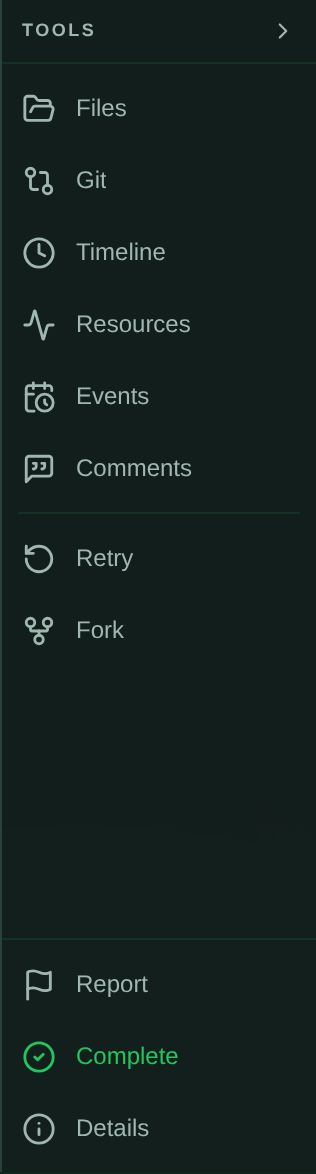
Files and Git need a linked workspace and a live session, so they disappear once the session sleeps or stops. Everything else stays, which matters: inspecting resources, reading the timeline, or reporting a problem is usually something you want to do after a session has ended.
The rail is grouped by what each tool acts on: the workspace and its history at the top, the task behind the session in the middle, and cross-cutting actions pinned to the bottom so they stay reachable however long the top group grows.
Changing How Much of the Rail You See
Section titled “Changing How Much of the Rail You See”The chevron at the top of the rail cycles it through three modes:
- Icons (the default) — a narrow strip of glyphs.
- Icons and labels — wider, with each tool named. Worth switching on while you learn the rail.
- Hidden — collapsed to a labelled Tools tab on the right edge; click the tab to bring it back.
Your choice is remembered in the browser, per device.
File Browsing
Section titled “File Browsing”While chatting with an agent, you can browse the workspace’s file system directly from the chat panel — no need to switch to a terminal.
How to Use
Section titled “How to Use”- Open Files in the session tool rail to navigate the file tree and view files
- Open Git to see status and diffs for what the agent changed
- Click file references in tool-call cards to jump directly to that file (expand the tool activity card first — see Tool Activity Cards)
What You Can Do
Section titled “What You Can Do”| Action | Description |
|---|---|
| Browse | Navigate directories and view the full file tree |
| View | Read any file with syntax highlighting |
| Diff | View git diffs for changed files |
| Git status | See which files are modified, staged, or untracked |
File Upload and Download
Section titled “File Upload and Download”You can attach files to your chat messages and download files from workspace containers.
Uploading Files
Section titled “Uploading Files”Click the paperclip button in the chat input to attach files. Files are uploaded to the workspace container’s .private directory.
Limits:
- Maximum per-file size: 50 MB (configurable via
FILE_UPLOAD_MAX_BYTES) - Maximum batch size: 250 MB (configurable via
FILE_UPLOAD_BATCH_MAX_BYTES) - Filenames must not contain shell metacharacters
Downloading Files
Section titled “Downloading Files”Click the download button on files shown in the file browser panel to download them from the workspace container.
Image Viewer
Section titled “Image Viewer”When browsing files, images are rendered inline with a dedicated viewer:
- Small images (under 10 MB) load inline automatically
- Medium images (10–50 MB) show a click-to-load preview
- Large images (over 50 MB) offer a download link only
- Toggle between fit-to-panel and 1:1 zoom modes
Supported formats include PNG, JPG, GIF, SVG, WebP, and other common image types.
Tool Activity Cards
Section titled “Tool Activity Cards”A single agent turn often runs dozens of tools between two sentences of prose. To
keep the conversation readable, SAM folds a run of consecutive tool calls into one
compact activity card that simply states how many ran — for example
7 tool calls.
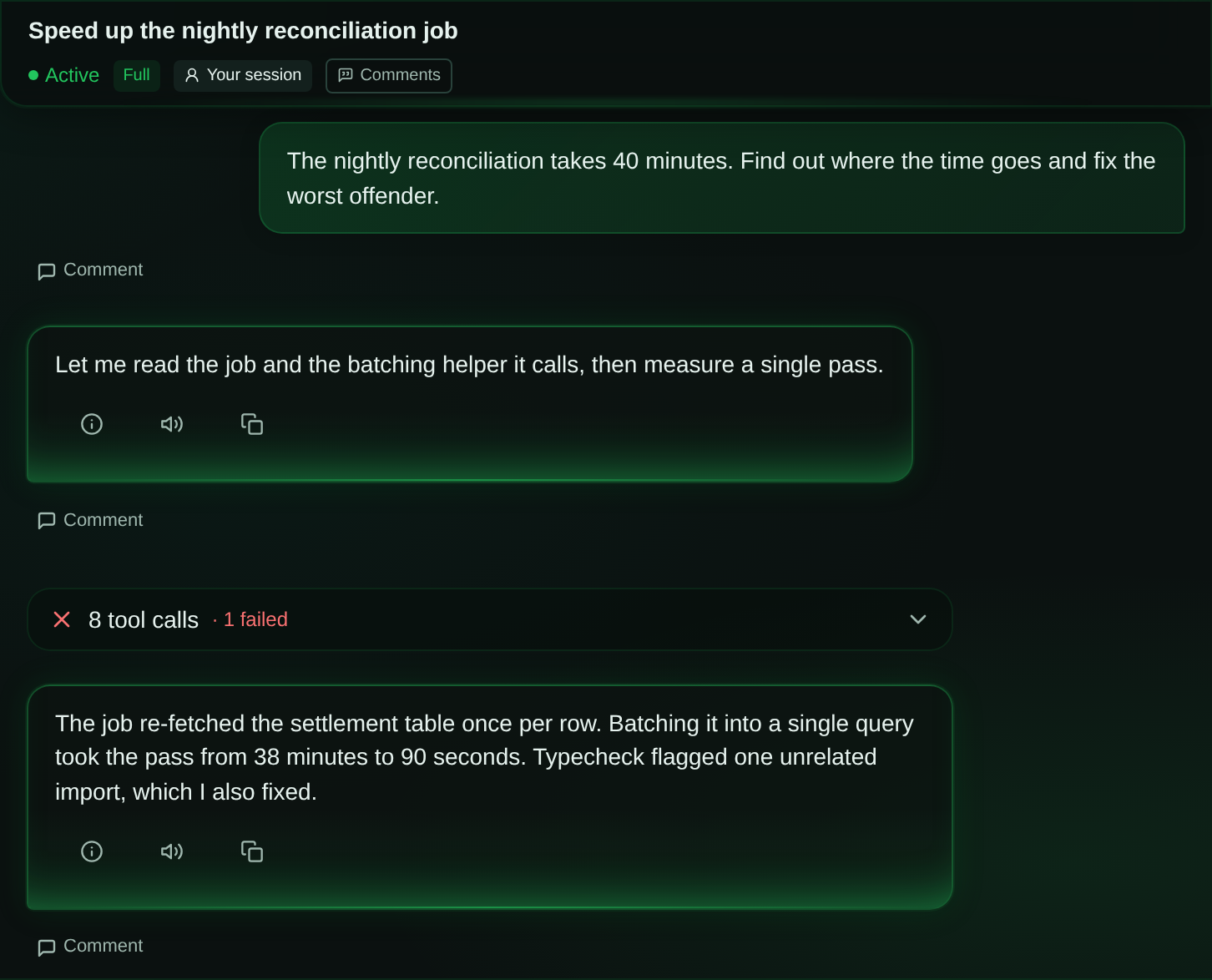
- While the run is in progress the card shows a motion indicator plus the tool
currently executing (
· running <its title>) — or· thinking…while the agent reasons between calls, or· workingwhen there is nothing more specific to name. When the run finishes the indicator settles, with no layout jump: a check mark if every call succeeded, a red ✗ if any of them failed. - If any call failed, the card says so in text as well as colour — for example
7 tool calls · 2 failed. - A single tool call is folded too, into a
1 tool callcard. - Tap the card to expand it into the individual tool-call cards, in order.
- Tap an individual call to load its output (diff, terminal output, or text). Output is fetched on demand, so a long run costs nothing until you ask for it.
- Expanded cards stay expanded while you scroll away and back.
- Thinking blocks that sit between tool calls are folded into the same card; they are not counted in the tool-call total.
Document cards are never hidden inside an activity card — a document the agent chose to show you always renders on its own (see below).
Add ?tools=expanded to a chat URL to open every activity card by default. That
is a debugging aid rather than a setting, and it is not remembered between visits.
Document Cards
Section titled “Document Cards”When an agent adds a file to the project library or surfaces an existing one, the chat renders a rich document card in the timeline instead of a plain tool row. Cards appear for three agent tools:
upload_to_library— the agent saved a new document (e.g. a written explanation or report) to the library.replace_library_file— the agent updated an existing library document.display_from_library— the agent pointed at a document that already exists, optionally with a short caption explaining why it’s relevant.
Each card shows a tiered inline preview based on the file type:
- Images render as an inline thumbnail.
- Markdown shows a clamped source preview with a fade.
- PDFs and other types show an icon with the file name and size.
Click a card to open the document full-screen. Markdown renders (with a toggle to see the source), images open in the image viewer, PDFs open in your browser’s own PDF viewer, and every file has a Download button. Because library files are stored durably, document cards keep working after the workspace is gone — a card whose file was later deleted degrades to a “no longer in the library” note rather than breaking.
Cards render the same way regardless of which agent produced them. Some agents send a follow-up tool update that omits the document details, which used to collapse the card into a bare tool row; SAM now recovers the details from the original tool call, so a document an agent shares always renders as a card.
Diagrams
Section titled “Diagrams”Ask an agent to draw something — an architecture, a request flow, a state machine, a timeline — and
it can answer with a Mermaid diagram. A ```mermaid code block in a
chat message is drawn as a diagram once the message has finished streaming; while it streams you
see the source. You can write one in your own messages too.
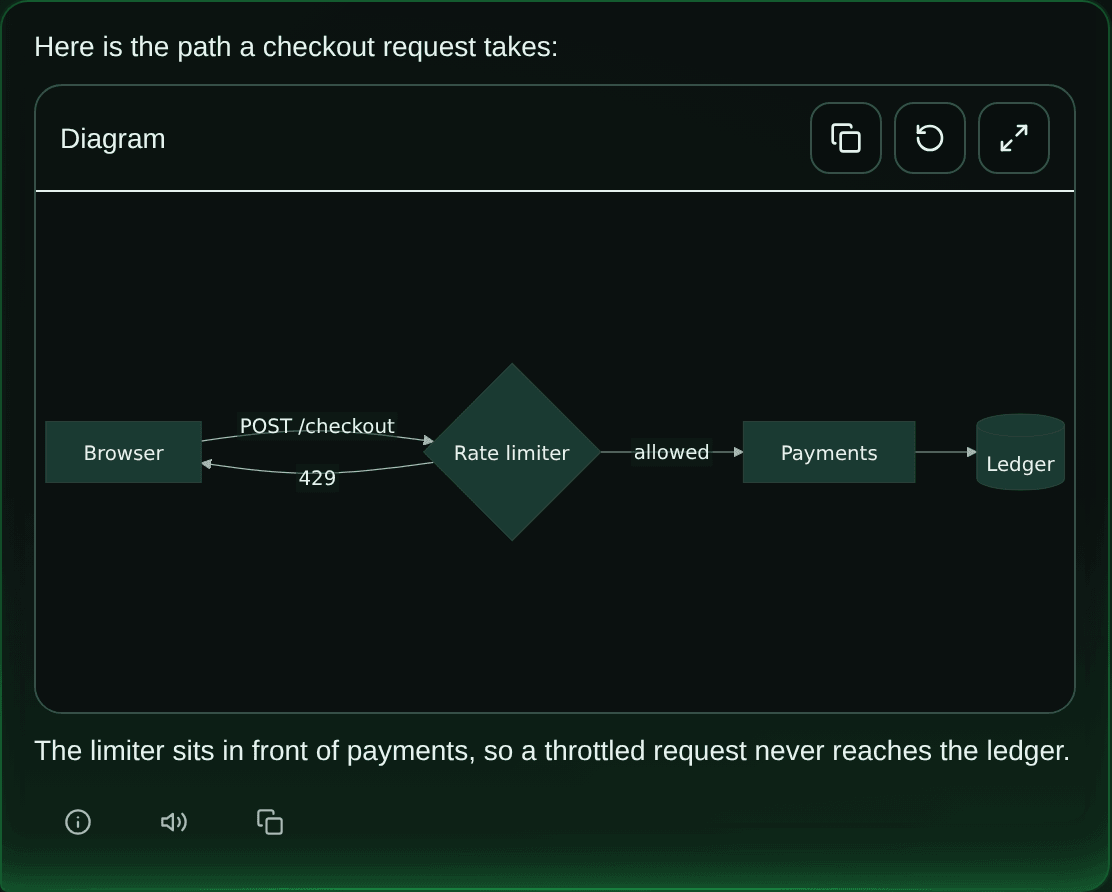
In chat, each diagram has three icon buttons: copy its Mermaid source, reset the view, and expand, which opens it full-screen. Drag to pan, and scroll or pinch to zoom. On a phone, a swipe that starts on a diagram pans the diagram, so start the swipe above or below it to scroll the chat.
Markdown files show diagrams too, in the project library and the Files tab, as a plain picture without those controls.
If a diagram has a syntax error you get a Mermaid diagram error card with the parser’s message instead; in chat it also has Copy source and View source. Ask the agent to fix the syntax.
Because agents write these diagrams, SAM draws them as static pictures: no scripts, no HTML, and no links out of the diagram (the details are in Security). Two things follow for the diagrams you ask for:
- Labels are plain text. Math (KaTeX), Venn diagram member lists, and the text icons in architecture diagrams need HTML labels, so their text does not appear.
- A diagram’s own settings are limited. Its configuration — an
%%{init: …}%%line or front matter — can still choose a theme, but it cannot switch HTML labels back on, add CSS, or change the font family.
Voice Input
Section titled “Voice Input”Click the microphone button to speak your message instead of typing. SAM transcribes your audio using OpenAI Whisper (via Cloudflare Workers AI).
Limits:
- Maximum audio file size: 10 MB
- 30 transcriptions per minute per user (
RATE_LIMIT_TRANSCRIBE). Past that, the microphone briefly shows an error state (hover it on a desktop to read “Too many requests. Please try again later.”) and that recording is not transcribed, so record it again after a short wait.
Text-to-Speech Playback
Section titled “Text-to-Speech Playback”Agent responses can be played back as audio. SAM uses Deepgram Aura 2 (via Workers AI) for natural-sounding speech synthesis.
- Audio is generated on-demand and cached in R2 for subsequent playback
- Configurable voice:
lunaby default (viaTTS_SPEAKER) - Maximum text length: 100,000 characters per synthesis
- Output format: MP3
- Persistent player — audio continues playing as you navigate between pages
TTS Configuration
Section titled “TTS Configuration”| Variable | Default | Description |
|---|---|---|
TTS_ENABLED | true | Enable/disable TTS |
TTS_MODEL | @cf/deepgram/aura-2-en | Workers AI TTS model |
TTS_SPEAKER | luna | Voice selection |
TTS_ENCODING | mp3 | Audio encoding format |
TTS_MAX_TEXT_LENGTH | 100000 | Max characters per synthesis |
TTS_TIMEOUT_MS | 60000 | Synthesis timeout |
Conversation Forking
Section titled “Conversation Forking”Fork and Retry both start a new chat linked to the one you’re in, and both open instantly.
| Fork | Retry | |
|---|---|---|
| Pre-filled with | An instruction to read the original chat, and its IDs | The original request |
| The new agent | Reads the original conversation, then does what you add | Starts the request again from scratch |
| Use it to | Try a different direction, or carry on from a chat that can’t be woken | Run a failed or stopped request again, perhaps with another model |
Neither copies the original workspace’s files: the new chat starts from your default branch in a
new workspace, and gets a new sam/… branch of its own unless it’s an Instant chat without
attachments (which chats get one). Forking works for any chat, whether it started from an
idea, a task, or a quick question, and SAM records the new chat’s parent.
How to Fork
Section titled “How to Fork”- Open the chat you want to branch from.
- Select Fork in the session tool rail, or Fork conversation on an expired chat.
- The new-chat screen opens with the message box filled in: an instruction for the agent to read
the previous chat with SAM’s tools (
get_session_messages,search_messages), then the previous chat’s title and its project, session, and task IDs. - Add what to do next at the end of the message, keeping the IDs, and send it. To build on what
the original agent pushed, say so, for example “continue from the original chat’s branch”. If
the original had a
sam/…branch of its own (which chats do), the new agent can look it up from the parent task ID; otherwise, name the branch its agent pushed to.

Retrying a Session
Section titled “Retrying a Session”Retry opens the new-chat screen with the original request filled in. If that request mentioned
a profile, the box also contains a note SAM added for the agent: a --- line, then a line
starting [SAM: The user mentioned, down to [End of mention context]. Delete all of it before
you send. If SAM
can’t load the original request, the message box says so and you can type it yourself. Retry isn’t offered for a chat whose saved workspace has
expired; fork it instead.
Before you send
Section titled “Before you send”- Check the profile. Fork and Retry use the profile selected in the message box, which isn’t necessarily the one the original chat used. Picking another profile is how you retry with a different agent or model.
- The ✕ on the banner removes the link to the original chat. The text stays in the message box, and sending it starts an ordinary new chat.
- How the new chat is labelled. In the session list it’s marked ⑂ from and the start of the original’s title, and its header shows ⑂ fork. Once a chat has been forked or retried more than once, the new chats are numbered ↩ attempt 2, 3, and so on.
Fork Limits
Section titled “Fork Limits”- Fork and Retry stop at a depth of 10, counting every fork, retry, and dispatched subtask in the
chain (configurable via
ACP_SESSION_MAX_FORK_DEPTH). Agents dispatching subtasks have their own, lower limit (MCP_DISPATCH_MAX_DEPTH, 3 by default).
Finding Past Conversations
Section titled “Finding Past Conversations”Two different tools answer two different questions:
- “Which chat was that?” Type in the Search chats box above the session list. It matches chat titles, session IDs, and who started the chat, among the chats loaded in the list (the 100 most recently active). It does not read messages, so for anything older, ask an agent.
- “Where did we talk about…?” Ask an agent in the project, for example: “Search this project’s chats for where we chose the retry limit, and tell me what we decided.” Agents can search the text of every chat in the project — sleeping, stopped, and archived ones included. There is no message-search box in the app itself.
Getting good results from agent search
Section titled “Getting good results from agent search”- Use a few distinctive words. A search returns messages that contain all usable words.
Indexed search ignores the reserved words
AND,OR,NOT, andNEAR; its other words match whole words, ignoring case, soretrydoes not findretries— ask for the forms you expect. Punctuation and quotation marks are ignored, so there is no exact-phrase search. - Leave out accents. Accented letters in a search are dropped, but indexed chats are stored
without accents, so
deploiementfinds “déploiement”. Words in non-Latin scripts can’t be searched yet. - The agent’s latest replies may not be searchable yet. SAM indexes a chat each time it goes to sleep, and again when it stops. Your own messages can be found straight away; the agent’s replies become searchable at the next indexing pass. In a long chat that can take a few passes, because each pass indexes a bounded amount, oldest first.
- Very old chats can be hard to find. When a project runs short of storage, SAM removes the search index for chats that ended more than a week ago, and it never rebuilds it.
- In a very large project, “nothing found” is not proof. A search reads only the newest part of the project’s history, then tells the agent what it did not cover; a search through archived history comes back in pages the agent works through until the search reports that it is complete. If an answer looks incomplete, ask the agent whether its search covered everything.
For how indexing, search windows, query limits, and archive paging work — the detail an agent or a self-hoster tuning search needs — see Architecture → Message search.
Session Lifecycle
Section titled “Session Lifecycle”Agent conversations and task sessions stay active until they complete, fail, or are explicitly stopped.
An idle timer is a resource-cleanup signal, not evidence that an agent succeeded. Before an idle
cleanup can stop a workspace or terminalize its task, SAM checks the task’s runtime lifecycle. A
live runtime is preserved. Sleeping, waking, recovering, restoring, timed-out probes, probe errors,
and unknown runtime state are also preserved because they are inconclusive. Only a conclusively
dead runtime can be terminalized by the sweep, and that transition is recorded as failed with
diagnostic context rather than completed.
SAM also collapses platform-injected setup messages in the chat timeline. Those messages contain project instructions, task context, and policy that the agent received before it started. They remain available for debugging, but they no longer dominate the visible conversation.
Sleeping and recovering sessions
Section titled “Sleeping and recovering sessions”Persistent chat sessions can sleep and recover on both Instant and VM-backed runtimes:
- Sleeping. The session went idle or you manually chose Sleep for an awake idle conversation-mode session with a workspace. SAM writes a checkpoint, releases compute, and keeps the composer visible so sending a message wakes the same chat, with the same agent, model, and permission mode it started with (for chats started since 7 October 2026, and on a self-hosted instance only from v2026.10.08; older ones wake in Manual, see After a chat wakes from sleep). A message sent in the first minutes after it slept waits (up to an hour) until the old workspace has finished shutting down, then wakes it, usually within a minute or two of the shutdown. Your message, or a notification from another agent or a subscribed event, reaches the agent once the woken session has fully started.
- Archiving a sleeping conversation. Choose Archive in the dock and confirm when you are finished with the chat. This also works for sleeping VM conversations. SAM immediately requests deletion of your linked workspace and discards its restore snapshots once runtime deletion is confirmed. If cleanup is interrupted, retry Archive; SAM keeps deletion retryable without completing the conversation twice. Archiving a shared conversation does not delete another member’s workspace.
- Snapshots that keep failing. If SAM cannot save a complete snapshot after a few tries (three, or 15 minutes, by default), it stops retrying. A VM session whose earlier snapshot saved its exact Git commit sleeps anyway, keeping the conversation and the repository but not every file, and the chat says what was kept. Otherwise the chat says SAM could not put the session to sleep, and the workspace keeps running. SAM could not save a complete snapshot explains both.
- Recovery. SAM is rebuilding the session’s runtime and restoring its saved state. Wait for it to finish instead of resending.
- Wake failed. SAM could not safely wake the sleeping session or the queued wake prompt expired before delivery. The session is marked Wake failed in the list and a system message in the chat explains the reason, so the failure is visible instead of hidden in retry state. Wake failed lists the reasons and what to do about each.
- Failed tasks. When a task fails while its workspace is still running, SAM snapshots the workspace and puts the conversation to sleep instead of deleting it. That covers a provider usage limit, a question the agent sent with its
request_human_inputtool that nobody answered, and an agent that went quiet after a SAM check-in. If the agent is still working when the task fails, SAM waits for its turn to end first (up to 8 hours by default). The failure banner stays, and sending a message wakes the same chat with its files restored. If SAM could not save the workspace, or the snapshot is incomplete, the chat says so. If SAM cannot safely snapshot the failed runtime, uncommitted changes may be lost; the chat explains what could not be saved. Archive still deletes it right away. When a task fails shows how to tell which happened.
You may also see a banner telling you a message was saved but its delivery was interrupted. That one needs a decision from you — SAM will not replay the message automatically, because replaying a prompt that already half-ran duplicates commits and pull requests. See Your prompt may or may not have run.
Starting a New Chat
Section titled “Starting a New Chat”When you open a new chat, SAM offers a few repo-aware starter prompts (for example, “What’s in this repo?” or “Run the tests and fix any failures”) so you can get moving without a blank page. Pick one or type your own.
To send on a desktop keyboard, press Cmd+Enter on Mac or Ctrl+Enter on Windows/Linux — plain Enter inserts a new line so you can write multi-line prompts. The composer shows the correct shortcut for your platform as a hint. On mobile, tap the send button; Enter always inserts a new line.
Switching Between Chats
Section titled “Switching Between Chats”The session list puts the chat with the most recent message first. Only a new message moves a chat up — from you, the agent, or SAM itself, such as a wake-failure notice. Sleeping, waking, stopping, or archiving a chat leaves it where it is, so an old chat you archive doesn’t jump to the top. A chat with no messages yet is placed by when it was created.
A chat you opened in the last 24 hours opens at once from a cache in your browser, then refreshes in the background. A thin bar at the top of the page shows while the refresh runs, and messages that arrived while you were away appear when it finishes. A chat that is not cached shows a loading indicator until its newest messages arrive. The previous chat never stays on screen while the next one loads.
Each chat opens on its newest messages. Scroll to the top, or select Load earlier messages, to load older history. Jumping to a timeline entry or a comment loads the history it needs first.
An unsent message in the composer stays with its chat when you switch to another chat in the project and back. Drafts are kept in memory only, never on disk, so a page reload discards them. The transcript cache belongs to your account, is only read after the sign-in check completes, and is deleted when you sign out. Its lifetime and size are configurable; see query cache persistence.
Session Filters (Shared Projects)
Section titled “Session Filters (Shared Projects)”In a project shared with teammates, everyone’s chat sessions appear in the same session list. A filter near the session search lets you switch between my sessions and all sessions so you can focus on your own work or see everything happening in the project.
For the full team workflow — inviting people, approving access, roles, and shared resources — see Collaboration & Shared Projects.
Focus Mode
Section titled “Focus Mode”On desktop, project chat has three layout levels you can cycle with the F key (or the toggle at the bottom of the sidebar):
- Default — full navigation and session sidebars.
- Focus — collapses the main navigation so you stay inside one project.
- Zen — collapses the session sidebar too, for maximum reading and prompt-writing space.
Reopen the sidebars whenever you need to switch projects, sessions, or settings.
Command Palette
Section titled “Command Palette”Press Cmd+K (Mac) or Ctrl+K (Windows/Linux) to open the global command palette. This provides quick navigation across the app:
- Search and jump to projects
- Navigate to settings, dashboard, or other pages
- Access workspace actions
- Available on both desktop and mobile (via the workspace action menu)